Workload & Capacity Planning
freispace offers a Workload planner that helps you analyse th workload of people, rooms and resources over a period of one to six months. The view is great to get a quick overview over times of idle times as well as overload phases.
Visualisation
freispace shows you a visual indication of the daily workload, absences, vacations and public holidays of any of your staff members and resources, all within one view.
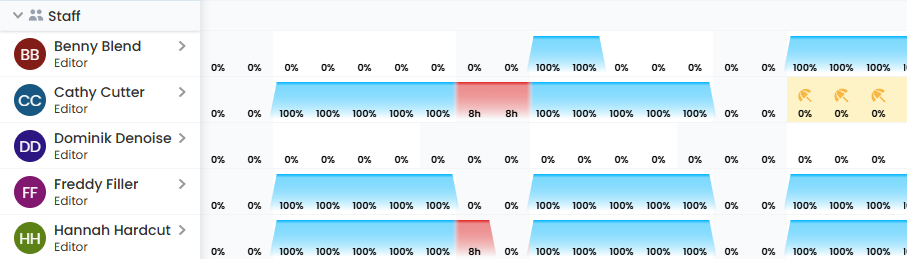
By expanding a resource, you can see a preview of any bookings causing the workload.

Please note this is a view-only mode, and thus no changes can be made to bookings.
Display methodology
Colouring
Workload is shown as a graph. Blue highlights any workload between 0% and 119%.
Any workload above 120% is shown with a red graph.
| Workload | Colour | Reasoning |
|---|---|---|
< 120 % (below 120 %) | blue | No overload, or on the slightly high note that may be okay temporarily |
>= 120 % (120 % and above) | red | Overload that could lead to problems |
Values
On working days for staff and on any day for resources, we display the workload in percent.
For days that staff are not expected to work (e.g. weekends, public holidays, vacations), we will display the amount of planned work hours instead.
| Type | Day type | Display type |
|---|---|---|
| Suites/rooms | any | Percentage |
| Resources | any | Percentage |
| Staff | Working days | Percentage |
| Staff | Non-working days (as per Working hour setting) | Hours |
| Staff | Full-day vacations & absences | Hours |
| Staff | Public holidays | Hours |
Half-day absences for staff count as working days, so a percentage will be shown.
Only absences that do not require time tracking (e.g. sick days) are taken into account. Absences where staff would still be available (e.g. home office) will not appear in this view, as they do not have an impact on workload.
Calculation of values
Case 1: All-day bookings
All-day bookings use the following calculation basis:
| Type | Hours | Workload |
|---|---|---|
| Staff | as per staff working hours (e.g. 8 h) | 100 % |
| Other resource types | 24 h | 100 % |
Staff members
On staff members, all-day bookings are assumed to consume a staff's full work day.
Rooms & Resources
For any resource type other than people, a full-day booking is assumed to consume the entire day, and is calculated as being 24h.
Case 2: Multi-day hourly bookings
Hourly bookings that span more than 24 hours will typically be calculated based on the start and end time of a booking.
Example: Mon 10am - Tue 4pm ⇒ 6 hours per day
| Type | Hours | Workload | Workload calculation basis |
|---|---|---|---|
| Staff | 6 h | 75 % | Staff working hours (8h in this example) |
| Other resource types | 6 h | 25 % | 24 hours |
Case 3: Hourly bookings
Hourly bookings are calculated based on their actual booking length.
Staff members
Quick note on staff members:
- If a staff member has working times set up, these will be used for any calculation
- Should a staff member not have working times (e.g. freelancers), the team default settings will apply:
Workday durationfrom the general team settings- applied to Monday to Friday, with weekends being
0 h
Individual resource times
If resources have specific times attached, those will always override booking start & end times.
In addition, when a resource has individual times, the calculation will always assume hourly bookings. A resource on an all-day booking would therefore be treated as outlined in Case 2 or Case 3.
Timezones
When viewing the workload report in a different timezone than the individual booking timezone, the times are shifted accordingly. This may result in skewed workload for staff members and resources that reside in a different time zone than the one you're looking at the planner in.
Exports
You may export both Excel spreadsheets (xslx) and PDFs.
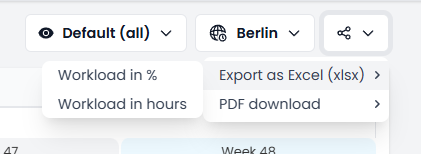
You may select whether the workload within the export should be in percent or hours.
Within exported Excel files, cells with a high workload will have a red highlighted background.