Analyse Staff Overheads
Report
Analyse how much overheads your planning generates for internal staff. Our report shows you the amount of overheads on an hourly as well as internal cost basis.
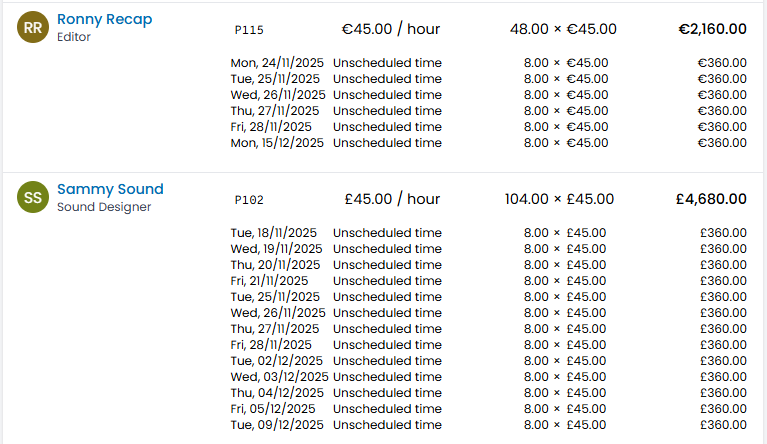
You may export the report as Excel or CSV.
Timeframe
Select any timeframe to analyse, future and past.
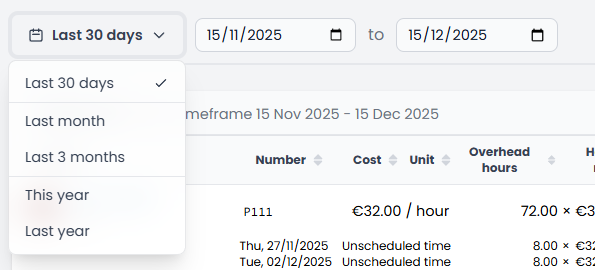
Either select a pre-defined time range, or enter you custom start and end date.
Settings
In the top right, you may adjust the display and calculation settings for the overheads.
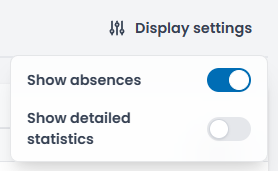
- Show absences: Displays absences as overheads, e.g. a vacation day might incur 8h of overheads.
- Show detailed statistics: Show or hide the detailed day-by-day breakdown of the overheads.
Calculation
We calculate the planned staff overheads according to your planning data (public holidays, absences, vacations, bookings, working times). The staff's working times are taken as a base for the daily amount of hours a person has available. Public holidays are always taken into account.
If you have "Show Absences" active, vacations and absences (e.g. parental leave) will show up in the list and the overheads of such absences are taken into account. If inactive, absences are deducted from the staff working times/days.
For the remaining available time of a person, the workload from bookings are deducted. Workloads on bookings (e.g. 20% workload) is taken into account. Example:
| Booking | Length | Workload | Booking Sum |
|---|---|---|---|
| #1 | 4h | 100% | 4h |
| #2 | 8h (all-day booking) | 25% | 2h |
| Sum: | 6h |
A total of 2h overheads (8h - 6h = 2h) would show on the report for that day.
The report is about overheads resulting from planning. It does not take time tracking into account, as a person would still have to be present and track time, even though no planned work was done.
Currencies
Staff with different internal cost currencies will show the incurred cost as their set currency. At the bottom of the page, you will find the sum of costs per currency.
Column Calculations
At the bottom of the table, you will see the aggregated data.
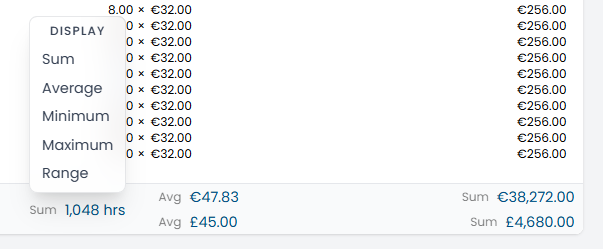
Click on any number to change the display value. You can select between:
- Sum
- Average
- Minimum
- Maximum
- Range (minimum and maximum)
Exports
You may export both Excel spreadsheets (xslx) and comma-separated value (CSV) files.
For use with LLMs, the CSV export is recommended, as it will use up less tokens.