Approval Workflows for Absences, Holidays, and Time Records
freispace offers the ability to set up multi-step approval workflows for absences, holidays and time records. Workflows for both data entry and cancellation of entries are set up through departments.
Approval workflows are only available to teams on Frame and higher tiers. Flagship users may set up multi-step workflows.
To set up department structures and approval workflows correctly we recommend booking a session with freispace support, as there are edge cases to consider.
Set up Departments & Roles
If you have not yet done so, set up your company structure using departments and roles, assigning any staff members appropriately.
Setting up Approval Workflows
- Navigate to Staff > Departments
- On any department or role, click on the three-dots menu and select Workflow settings
- Click the buttons (e.g.
+ Holiday,+ Absence) to create approval workflows for various time tracking-related entries. Note: Tracked time workflows are only available to Flagship tier users.
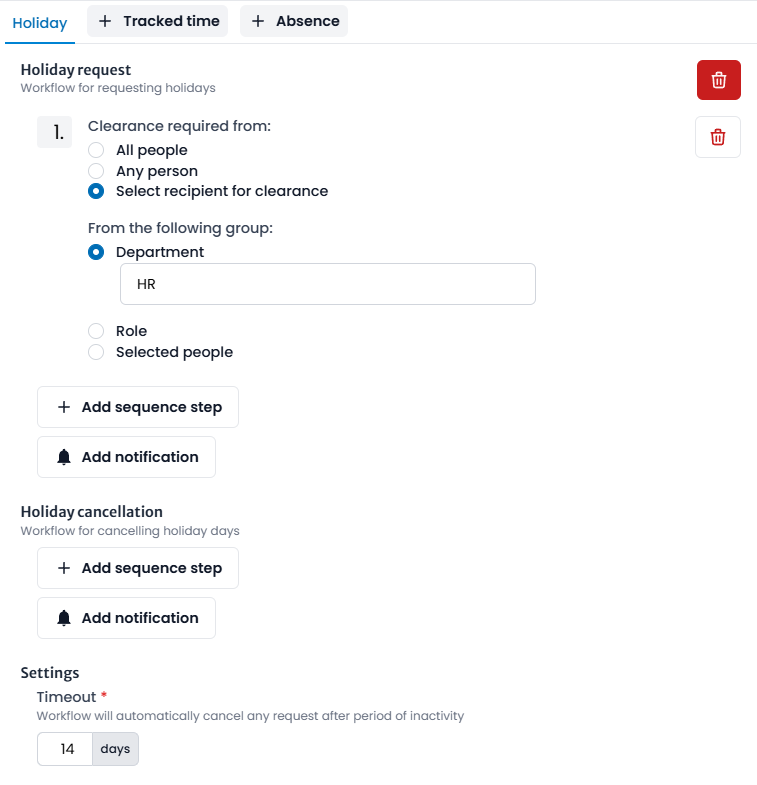
- Set up your workflows as required.
- Create new sequence steps by clicking on + Add sequence step
- You may set whether everyone or just one person of a group of people need to approve each step.
- On the first step of a workflow, you may also allow the requester to select who should receive the request. This might make sense if a department is run by multiple people, and depending on the current projects a different manager needs to approve the request.
- You may select the pool of recipients of a request to be either a department, someone with a specific role of the current department (e.g. the manager), or manually select recipients.
- Flagship-tier teams may set up as many steps as required. All steps will be processed sequentially after another.
- Set up who should be notified at the end of a completed (approved) request via Add notification. This may usually be HR or the head of department.
- For absences and holidays, cancellation workflows can be set up in the same way.
- The timeout value sets how long the workflow waits for all approval steps to complete before timing out and cancelling the request. When setting this value, be mindful of time frames where managers might be unavailable for a longer period of time, e.g. bank holidays.
- Create new sequence steps by clicking on + Add sequence step
Cascading of workflows
Workflows cascade, and role workflows take precedence over departmental workflows.
Role > Department > No workflow
A person in a manager role will therefore inherit workflows of their department if no role-specific workflow is set up.
Restrictions for users
Depending on the workflows set up, team members will encounter the following, inherent restrictions.
Time tracking
When approval of time tracking entries is enabled, users will face the following restrictions:
- Direct creation of entries is restricted. Time tracking entries can only be saved as draft or submitted for approval.
- Converting bookings to time records is restricted. Bookings can no longer be converted into time records directly. Instead, entries need to be reviewed and submitted for approval
- "Transfer all times" button is unavailable. Transmitting the entire day in one go is no longer possible.
- Editing is disabled. Instead, entries need to be deleted and new requests sent for approval, ensuring all changes go through an approval process.
Holidays & Absences
When approval workflows of absences or holidays are enabled, users will face the following restrictions:
- Direct creation of entries is restricted. Entries can only be saved as draft or submitted for approval.
- Editing entries is no longer possible. Instead, deletion/cancellation of entries and re-entry is necessary. This ensures all changes to go through approval.
- Deletion may be prohibited. Depending on the settings, deletion might be unavailable. Instead, a cancellation workflow may be in place, requiring approval for a cancellation.
Bypassing workflows (depending on permissions)
If you have permission to edit time tracking entries of behalf of another person, you may select whether to add entries via the approval workflow (and start the approval process on their behalf) or wether to input entries directly, bypassing the workflow entirely.

For example, this allows an HR department to input absences on behalf of staff members.
Bypassing one's own workflows is always prohibited.